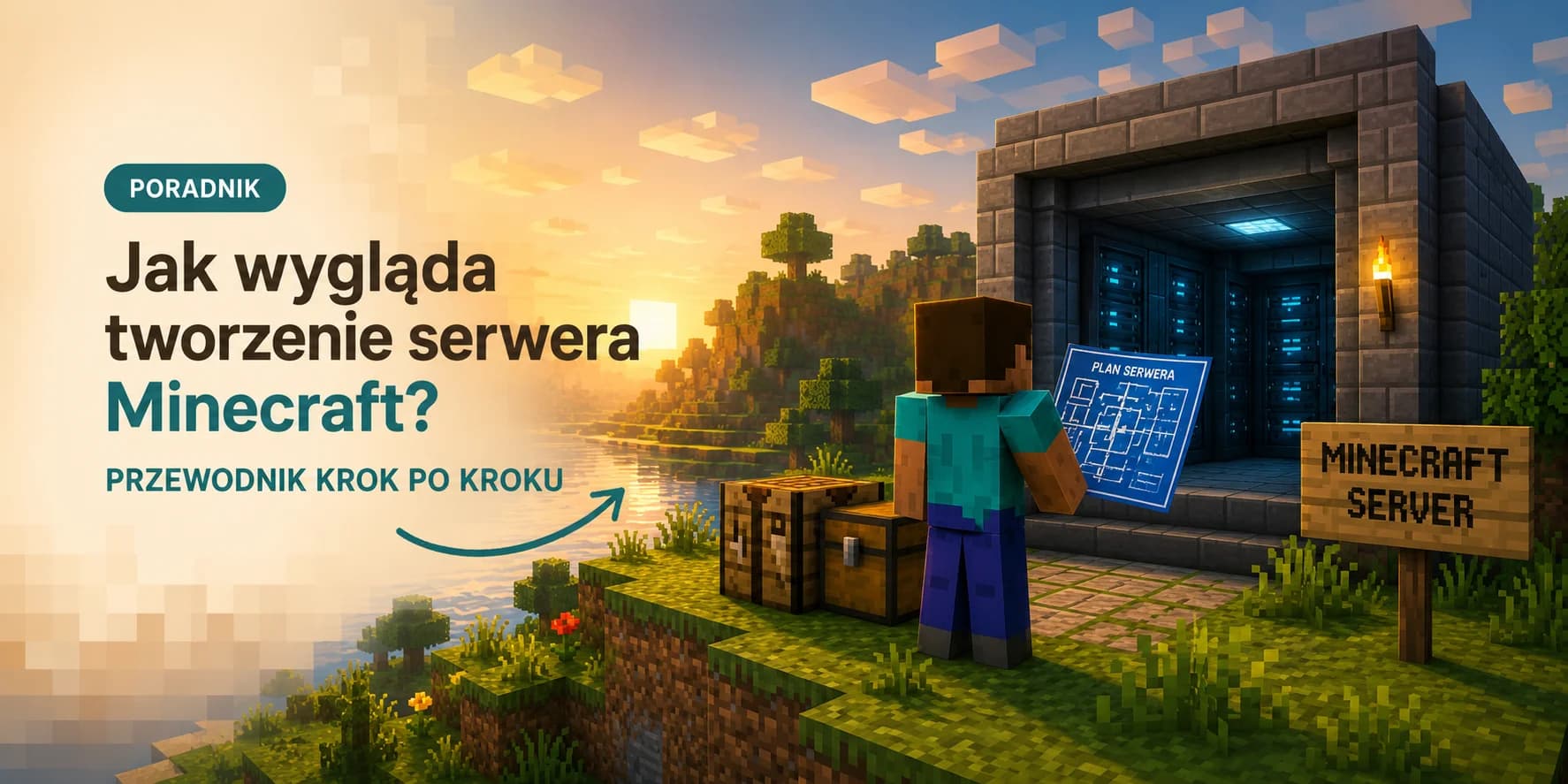
What does creating a Minecraft server look like? A step-by-step guide
Running your own Minecraft server opens a completely different chapter of the game. Instead of joining other people's worlds, you build a place that belongs to you and your friends, with your own rules, plugins and vibe. It sounds intimidating, but the process is simpler than it looks. In this guide we walk through it step by step: from picking the game edition, through the "own PC or hosting" decision, all the way to your friends logging in for the first time.
A few decisions before you start
The most common beginner mistake is jumping straight to the installation without deciding what you actually want to build. A server for three friends on plain Vanilla is a very different thing from a public server with dozens of plugins. Before you click anything, answer three questions:
- Java or Bedrock? The Java edition (PC) gives you full freedom: plugins, mods, modpacks. Bedrock (phone, console, Windows) is more convenient across platforms but poorer in add-ons. Most servers run on Java, and that is what we assume here.
- For how many players? This drives the power and RAM you need. You scale a world for 5 people differently than for 50.
- Vanilla or modified? Plain game, light plugins (land protection, economy) or a heavy modpack? This decides which server engine you pick; more on that below.
Two paths: your own PC or hosting?
Technically you can run a Minecraft server on your own computer. Mojang provides the server.jar file for free. The catch is that "running it" is only the beginning. For friends to join, you have to open router ports, deal with a changing IP address, and keep the machine on around the clock. In practice, hosting turns out to be more convenient for most people. Here is an honest comparison:
| Criterion | Own computer | Minecraft hosting |
|---|---|---|
| Upfront cost | Seemingly zero | From a few euros / month |
| 24/7 availability | Only while the PC is on | Always, regardless of you |
| Network setup | Port forwarding, IP headaches | A ready-made address instantly |
| Attack protection | None; you expose your home line | Built-in Anti-DDoS protection |
| Performance | Competes with the game and browser on the same PC | Dedicated resources for the server only |
| Ease of management | Manual, via console and files | Browser panel, one-click backups |
Mind your home connection
How much RAM do you really need?
RAM is the fuel of a Minecraft server. Too little and the world stutters, mobs "teleport" and chunks load late. Too much bought "just in case" is simply wasted money. The values below are a proven starting point:
| Scenario | Players | Suggested RAM |
|---|---|---|
| Vanilla / a few friends | 2–5 | 4 GB |
| Light plugins (survival, economy) | 10–20 | 5–6 GB |
| Medium mod or plugin pack | 15–30 | 8–10 GB |
| Large modpack (e.g. RLCraft-style) | 10–25 | 10–16 GB |
| Public minigame server | 30–60 | 16 GB and up |
It is not only about RAM
Which server engine should you choose?
The "engine" is the software your server runs on. It determines whether you can install plugins, mods, or stick to the plain game. There is no single right answer. It all depends on what you want:
| Engine | Character | Best for |
|---|---|---|
| Vanilla | The original server from Mojang | Plain game, maximum compatibility with the latest version |
| Paper | Optimised, plugin-based | The most common pick: fast, stable, runs Spigot/Bukkit plugins |
| Purpur | Paper with extra options | When you want to fine-tune gameplay mechanics |
| Spigot / Bukkit | The plugin classic | Older guides and plugins, today often replaced by Paper |
| Fabric | A lightweight mod system | Modern mods, fast updates after a new version drops |
| Forge / NeoForge | The classic mod system | Large mod packs and well-known modpacks |
Creating the server step by step
Let's assume you go with hosting, the fastest and most convenient option. The whole procedure comes down to a few clicks in a browser panel. Here is how it looks at MineHost:
- 1
Pick a package that fits your plans
Use the RAM table above. If you hesitate between two sizes, take the smaller one; you can always upgrade later without losing your world. - 2
Choose the engine and game version
One click installs Vanilla, Paper, Fabric or a ready-made modpack. You select the game version from a list, no manual downloading of files. - 3
Start the server for the first time
The first launch generates the world and config files. This is when the server accepts the licence (eula.txt) and creates server.properties. - 4
Adjust the basic settings
In server.properties you set the server name, game mode, player limit and difficulty. The key entries are in the table below. - 5
Give yourself admin rights
The /op YourName command in the console grants full permissions. From now on you can change time, weather, teleport and manage players. - 6
Share the address with friends
You get a ready IP address or a free subdomain. Friends just paste it into the Multiplayer tab in-game. Done.
The key settings in server.properties
The server.properties file is the control centre of your server. You don't need to know all of its dozens of options; a handful is enough to start:
| Setting | What it does | Example |
|---|---|---|
max-players | Maximum players online | 20 |
gamemode | Default game mode | survival |
difficulty | Difficulty level | normal |
pvp | Whether players can fight each other | true / false |
white-list | Lets in only approved people | true (private server) |
view-distance | Chunk loading range (affects performance) | 8–10 |
online-mode | Requires a premium Minecraft account | true |
A server just for friends?
white-list to true and add friends with /whitelist add Name. Only invited people will be able to join the simplest way to protect a private game.Plugins, mods and backups
Once the server is up, the best part begins, which is making it your own. Plugins (on Paper-style engines) add features without touching the player's game: land protection, ranks, economy, punishments. Mods (Fabric/Forge) change the gameplay itself: new blocks, mobs, dimensions, but they require every player to have the same set of mods on their side.
There is one more thing that is easy to forget until it is too late: backups. A single broken plugin or an accidental /fill can ruin a world built over weeks. Regular backups are the difference between "a moment of stress" and "a disaster".
Backups run themselves
Common beginner mistakes
- Buying a too-small package "to try it out", then wondering why the world lags with 10 players.
- Skipping backups. Everyone does until the first serious crash.
- Mixing plugins (Paper) with mods (Forge) on one server. Two completely different systems that do not combine.
- Installing a dozen plugins at once, so you cannot tell which one causes an error.
- Leaving the whitelist off on a server that was meant to be private.
- Playing and hosting on the same home PC. The game fights the server for resources and one of them always loses.
Quick FAQ
Do I need programming skills to create a server?
No. On hosting you do everything in a browser panel: installing the engine, changing the version or making backups is a few clicks. The console and files only come in handy for more advanced ideas.
Do players need a premium Minecraft account?
With online-mode=true, yes. It is the security standard that verifies player identity. It is the recommended setting for most servers.
Can I change the package as the server grows?
Yes. Moving to a bigger package happens without losing your world and configuration. The server simply gets more resources.
Launch your Minecraft server in minutes
Pick a package, click a game engine and play. A ready address, Anti-DDoS protection and one-click backups. We take care of all the technical rest.